
THE GAMING PC SPECS GUIDE
Gaming PC Specs Explained: What You Actually Need
Understand gaming PC specifications, from GPU and CPU to RAM and SSD storage. Choose what matters for your games, resolution, and frame-rate target.
The quick answer
Start with the games you play, your monitor’s resolution, and the frame rate you want. Then choose the graphics card and processor together. For a new gaming desktop, 16GB of RAM is a reasonable budget starting point; 32GB gives more room for demanding games and open apps. A 1TB SSD is our practical starting target for a mixed game library.
You do not automatically need a flagship processor, 64GB of RAM, or the most expensive graphics card. You need evidence that the exact configuration can deliver your chosen experience.
Research checked November 11, 2026. This is a specification explainer for U.S. shoppers, focused on desktops, with a laptop comparison below. The targets are PCFinder’s buying guidance, not minimum requirements or measured performance guarantees. We have not benchmarked the systems discussed.
What gaming PC specifications do you actually need?
Write down three things before comparing listings: your most demanding games, your screen resolution, and your desired frames per second (FPS). FPS describes how many frames the PC produces each second. A monitor’s refresh rate, measured in hertz (Hz), describes how often the screen updates.
For example, “Fortnite at 1080p, competitive settings, aiming for 144 FPS” is a useful shopping brief. “A fast gaming PC” leaves too much unanswered. A 144Hz monitor also does not make a computer produce 144 FPS.
On a small screen, swipe or use the arrow keys to scroll the table.
| Your goal | Where to focus | RAM target | Evidence to look for |
|---|---|---|---|
| 1080p, around 60 FPS | A balanced CPU and GPU; consider lower settings to save | 16GB on a tight budget; 32GB for more headroom | Tests at your preferred preset, without assuming ultra settings |
| 1080p, 144 FPS or higher | CPU performance and consistent frame delivery, alongside a capable GPU | 16–32GB, depending on the game and open apps | Competitive settings, average FPS, and performance during slower moments |
| 1440p, around 60–144 FPS | More GPU performance; a CPU that can sustain your target | 32GB is our preferred new-system target | Your games at 1440p, with ray tracing and upscaling settings disclosed |
| 4K, around 60 FPS or higher | GPU performance and graphics-memory limits at the chosen settings | 32GB for a general gaming system; more only for a specific need | 4K tests that separate native rendering, upscaling, and generated frames |
These are editorial planning targets. Resolution alone does not determine RAM needs. Corsair’s component guide explains why graphics matter more as visual demands increase and why high frame rates can make CPU performance more important.
At the common 16:9 sizes, 1920 × 1080 is about 2.1 million pixels, 2560 × 1440 is about 3.7 million, and 3840 × 2160 is about 8.3 million. So 4K has four times the pixels of 1080p. That arithmetic explains the extra drawing work; it does not predict an exact FPS reduction.
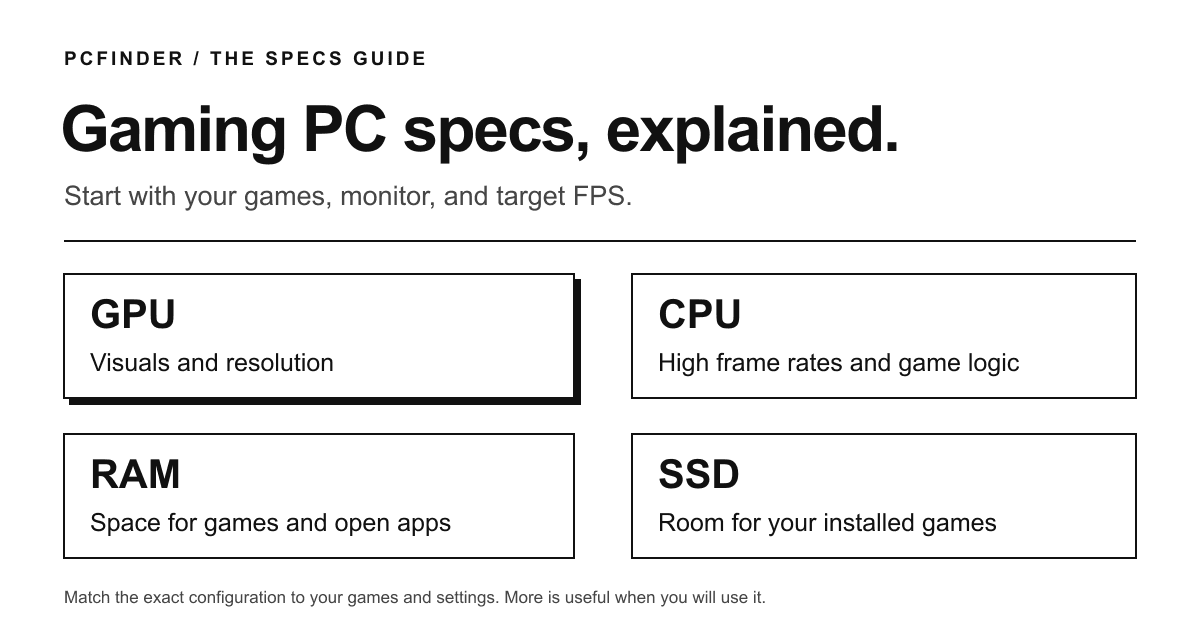
GPU: the graphics card, not just a memory number
The graphics processing unit (GPU) draws the game’s images. Start here when comparing PCs for detailed graphics, higher resolutions, or ray tracing, which simulates lighting effects. Ask for the full GPU model and its memory configuration. “Dedicated graphics” is too vague to judge.
VRAM and system RAM are different
VRAM is graphics memory used for data such as textures. System RAM supports the game, operating system, and other running apps. A listing with 32GB of RAM has not told you how much VRAM the graphics card has. Integrated graphics may share system memory; Intel explains that distinction for its integrated graphics.
More VRAM can provide room for demanding textures, but capacity alone cannot rank two graphics cards. Compare the exact variant in tests of your games. If a review shows memory-related stutter at your intended settings, consider a different card or lower texture settings. Avoid treating one VRAM figure as a universal requirement for every 1440p or 4K game.
Check what “120 FPS” includes
Upscaling reconstructs an output image from a lower rendering resolution. Frame generation adds generated frames. NVIDIA documents these as separate features. They can be useful, but a performance number needs its settings attached.
When comparing results, match the game version, resolution, preset, ray tracing, upscaling mode, and frame-generation setting. Also look for responsiveness and image-quality observations. A headline frame rate with generated frames does not, by itself, tell you how responsive the game feels.
CPU: pay for the performance your games use
The central processing unit (CPU) runs instructions involved in game logic, simulation, and other work. It can matter especially when chasing high FPS or playing complex strategy and simulation games. Intel’s gaming CPU guide describes how core count, clock speed, and additional features affect the choice.
Compare full model numbers. A “Core i7” or “Ryzen 7” label without the model and generation leaves out too much. A higher GHz number or more cores does not establish which of two different designs will run your game faster.
For a 60 FPS shopping goal, do not pay for a flagship CPU automatically. For a high-refresh competitive setup, check CPU testing with a fast enough GPU to reveal processor differences. Look beyond average FPS: frame-time graphs show how evenly frames arrive, and “1% low” results summarize performance toward the slower end of a run. Compare those numbers within the same reviewer’s method.
Skip the universal “bottleneck percentage.” The limiting component can change with the game, scene, and settings. A specific test is more useful than a calculator’s single score for the entire PC.
RAM and SSD storage: capacity for different jobs
Is 16GB or 32GB of RAM enough?
Use 16GB as a budget starting point when your games support it and you keep background apps under control. We prefer 32GB for a new desktop intended for demanding games, mods, voice chat, and multitasking. Check a particular game or mod pack before paying for 64GB. Extra unused capacity is not a guaranteed frame-rate upgrade.
Check the installed memory arrangement and upgrade options. “32GB supported” may describe the maximum capacity, rather than what comes installed. DDR4 and DDR5 require compatible hardware; Corsair’s RAM FAQ confirms they are not interchangeable. Do not let a DDR5 label distract from a weaker overall configuration.
How much SSD storage should you buy?
An SSD stores installed games and files. Our 1TB starting target balances room for several games against cost; choose 2TB if you keep many large games or recordings locally. A 500GB drive can work for a small rotating library, with more uninstalling and downloading.
Intel’s SSD guide explains storage’s role in loading and accessing game data. Check the game’s storage requirements, capacity left after Windows and apps, and whether there is an available expansion slot. A large hard drive alongside a small SSD does not mean all your games will fit on the SSD.
Minimum and recommended specs need context
Minimum requirements describe a publisher’s lower supported target. They are a poor standalone shopping list for someone expecting high settings and smooth high-FPS play. Recommended specifications also need the publisher’s resolution, preset, and frame-rate context.
For example, Epic’s Fortnite requirements list 16GB of RAM or more and an NVMe SSD in the recommended tier, with a separate Epic Quality graphics tier. The recommended label alone does not promise 144 FPS at Epic settings.
CD Projekt Red’s Cyberpunk 2077 requirements make the distinction explicit: the Update 2.0-and-later non-ray-tracing minimum targets 1080p low at an expected 30 FPS, while recommended targets 1080p high at 60 FPS. The page also retains older requirements, so read the current section.
Start with the publisher’s current requirements, then find recent testing of the exact CPU/GPU combination or a closely matched configuration. Updates and mods can change the workload. Treat a reviewer’s results as evidence under those test conditions, rather than a promise for every scene.
The gaming PC buying checklist
For a prebuilt, the headline CPU and GPU are only part of the purchase. Before comparing final totals, check:
- Exact parts: full CPU and GPU models, VRAM, installed RAM, and SSD capacity. Ask the seller about missing fields.
- Power supply: manufacturer, model, output, and suitable connectors. Follow the GPU maker’s system-power guidance. Intel’s power-supply guide explains why wattage and efficiency are different considerations.
- Cooling and noise: look for sustained-load testing of the complete system. Fan count, RGB lighting, and liquid cooling alone do not establish good cooling.
- Upgrade access: available RAM and storage slots, case clearance, and whether the motherboard and power connections accept standard replacement parts.
- Daily essentials: Wi-Fi if needed, monitor connections, included operating system, return terms, and warranty support.
- Total cost: include tax, monitor, keyboard, mouse, and any required adapters in your budget.
Ready to compare complete systems? Explore our best prebuilt gaming PCs for every budget to see the hardware trade-offs from $500 to $6,000.
A laptop needs its own comparison
Do not substitute desktop benchmarks for a similarly named laptop GPU. NVIDIA’s laptop specifications list power ranges for mobile GPUs. Check the exact laptop’s configured GPU power, cooling, and performance mode, then look for testing of that model. Also consider charger size, fan noise, and plugged-in performance.
Common questions about gaming computer specs
Do I need a dedicated graphics card?
It depends on the game and target settings. Some lighter games support integrated graphics; demanding titles or higher visual targets can require a dedicated GPU. Use the publisher’s requirements and tests of the exact integrated or dedicated graphics model.
Should I upgrade the CPU or GPU first?
Find out what limits your chosen game at your usual settings. If lowering resolution substantially improves FPS, the graphics workload is likely relevant. If it barely changes performance, investigate CPU limits, memory, frame caps, and other causes before buying parts.
Does 4K require 64GB of RAM?
No universal rule ties 4K to 64GB of system RAM. Higher resolution primarily changes the graphics workload. Check the game and your background apps; our general new-system target is 32GB.
How do I avoid overspending?
Set a concrete goal, compare evidence for that goal, and stop paying for unused capability. Someone playing a few lighter games at 1080p has different needs from someone targeting 4K with ray tracing. Leave room in the budget for the screen and other equipment you will use every day.